Searching & Filtering
Find files quickly using search and filters.
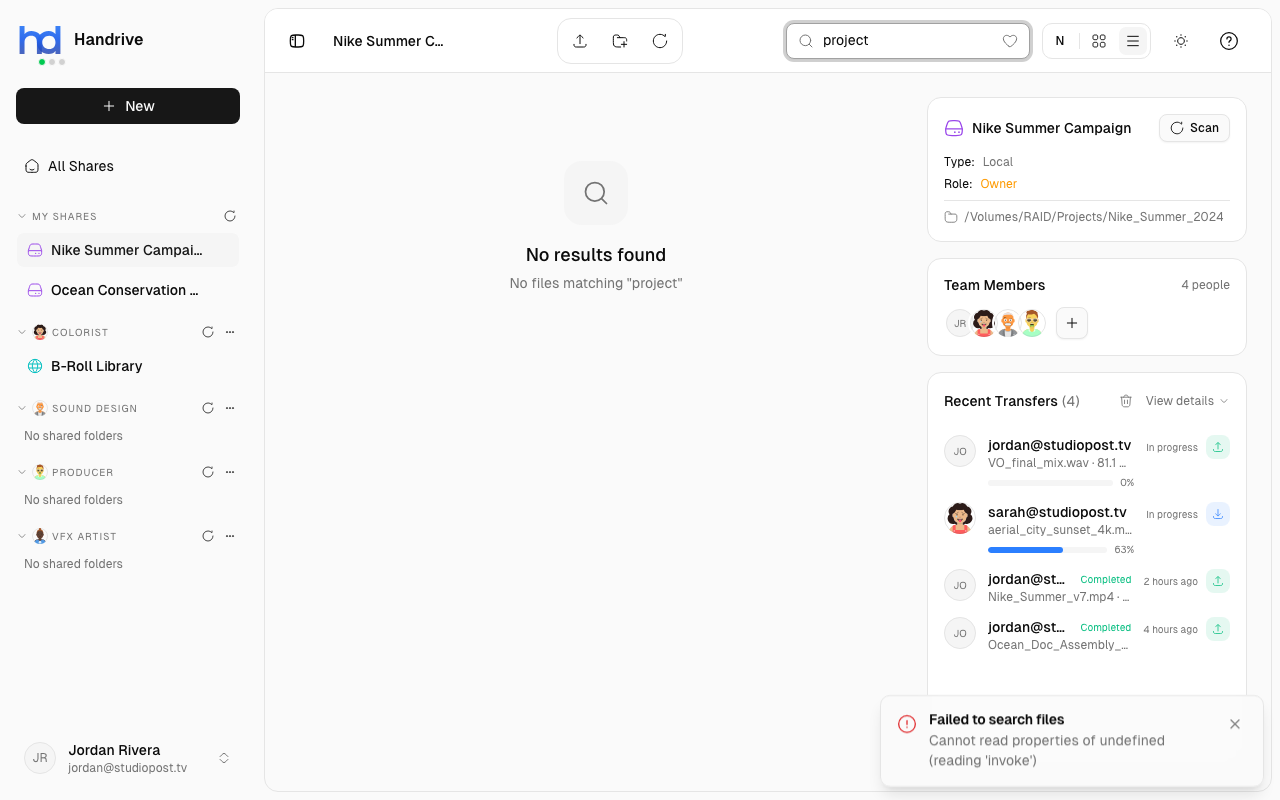
Search
Using the Search Bar
- Click the search bar in the header (or press
/) - Type your search query
- Results appear as you type
Search looks at file and folder names within the current share.
Search Tips
- Search is case-insensitive ("Report" finds "report.pdf")
- Partial matches work ("proj" finds "project_final.docx")
- Search includes subfolders
Clearing Search
- Click the X in the search bar
- Press Escape
- Delete all text in the search bar
Filtering by Stars
To show only starred (favorited) files:
- Click the Star filter button in the header
- Only starred files are shown
- Click again to show all files
This is useful for quickly accessing your most important files.
Sorting
Click the sort dropdown in the header to sort by:
| Sort Option | Description |
|---|---|
| Name | Alphabetical order (A-Z or Z-A) |
| Size | Largest or smallest first |
| Modified | Most recent or oldest first |
In list view, you can also click column headers to sort.
Combining Search and Filters
You can use search and filters together:
- Filter to show only starred files
- Search within those starred files
This narrows down results quickly in large shares.
Finding Files Across Shares
Currently, search works within one share at a time. To find a file when you don't know which share it's in:
- Check "All Shares" view
- Open each likely share and search
- Use file tags to organize across shares