Creating a Share
Learn how to create a new share from a folder on your device.
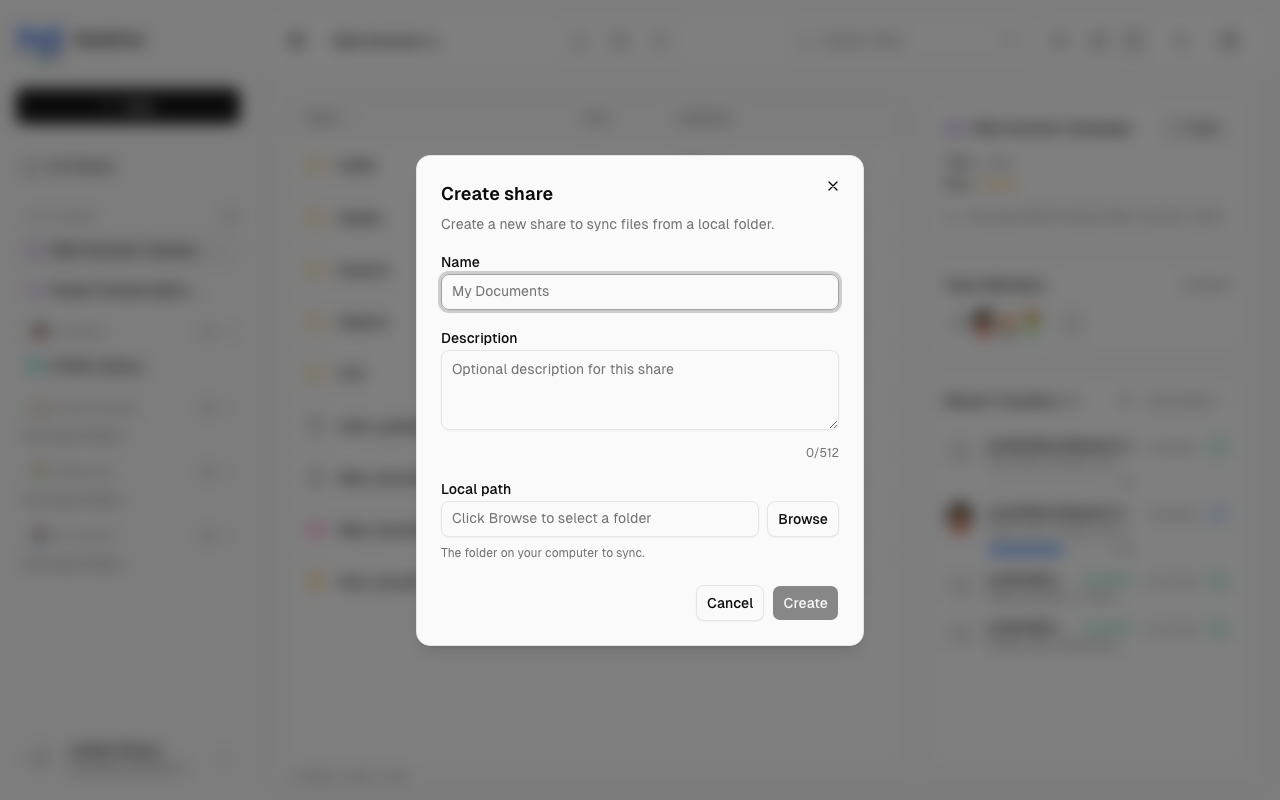
Steps to Create a Share
- Click the + New button in the sidebar
- Select New Share
- Enter a name for your share (or let it auto-fill from the folder name)
- (Optional) Add a description to help collaborators understand the share's purpose
- Click Browse to select a folder on your device
- Click Create
Your new share appears in the sidebar under "My Shares".
Choosing a Folder
When selecting a folder to share:
- Choose a folder that contains the files you want to share
- The entire folder contents will be available in the share
- Subfolders are included
- You can share any folder you have read access to
tip
Create a dedicated folder for sharing rather than sharing your entire Documents folder. This makes it easier to manage what's shared.
Share Naming
Give your share a descriptive name that helps you and collaborators understand its purpose:
- ✅ "Project Alpha Assets"
- ✅ "Family Photos 2024"
- ✅ "Client Deliverables"
- ❌ "Stuff"
- ❌ "Folder1"
You can rename the share later if needed.
What Happens Next
After creating a share:
- Files are indexed - Handrive scans the folder to list available files
- Share appears - You can see it in your sidebar and browse its contents
- Ready to share - You can now invite collaborators
Important Notes
- Creating a share does NOT copy your files anywhere
- Files remain exactly where they are on your device
- The share is a "window" into that folder
- Changes you make to files on disk are reflected in the share
caution
If you move or delete the folder on your device, the share will become unavailable.