Adding Contacts
Connect with other Handrive users.
Why Add Contacts?
Adding someone as a contact allows you to:
- See shares they've given you access to
- Easily invite them to your shares
- View their online status
Adding a Contact
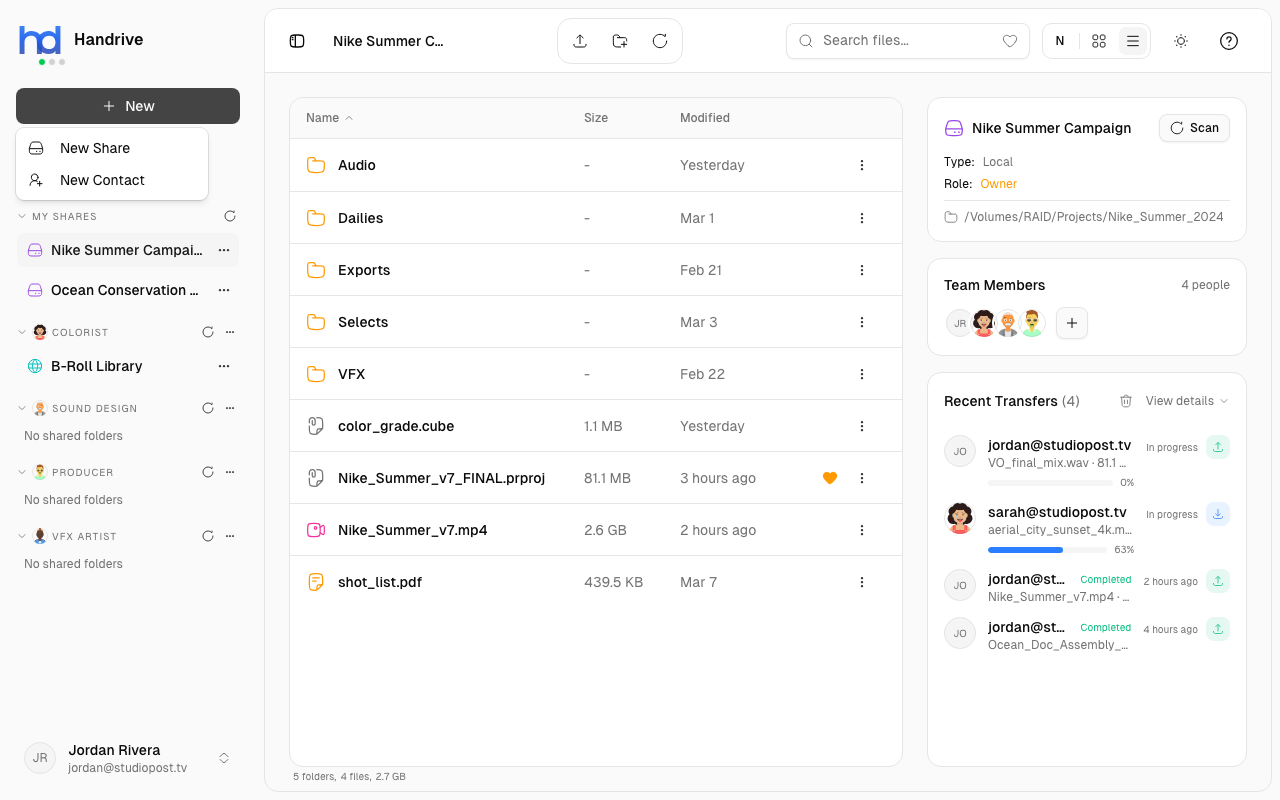
- Click + New in the sidebar
- Select New Contact
- Enter their email address
- Click Add
important
The email must match their Handrive account email exactly.
Requirements
For a contact to be added:
- They must have a Handrive account
- You must know their registered email address
- They don't need to "accept" the connection
What Happens After Adding
Once you add a contact:
- They appear in your sidebar - Under their name/email
- Their shares appear - Any shares they've invited you to show up
- You can invite them - Easily add them to your shares by email
Contact Discovery
Adding a contact triggers share discovery:
- Handrive checks for shares they've given you access to
- Those shares automatically appear under their name
- New shares they invite you to appear without re-adding
One-Way Connection
Adding someone as a contact is one-way:
- You see their shares (that they've shared with you)
- They DON'T automatically see your shares
- They need to explicitly be invited to your shares
Finding Someone's Email
To add a contact, you need their Handrive email. Ask them:
- What email did they use to sign up?
- Is it their Google account email or a different address?
Troubleshooting
"User not found"
- Double-check the email spelling
- Confirm they have a Handrive account
- They may use a different email than expected
No shares appear
- They haven't invited you to any shares yet
- Ask them to add you as a member to their share