Transfer History
Track and review your file transfers.
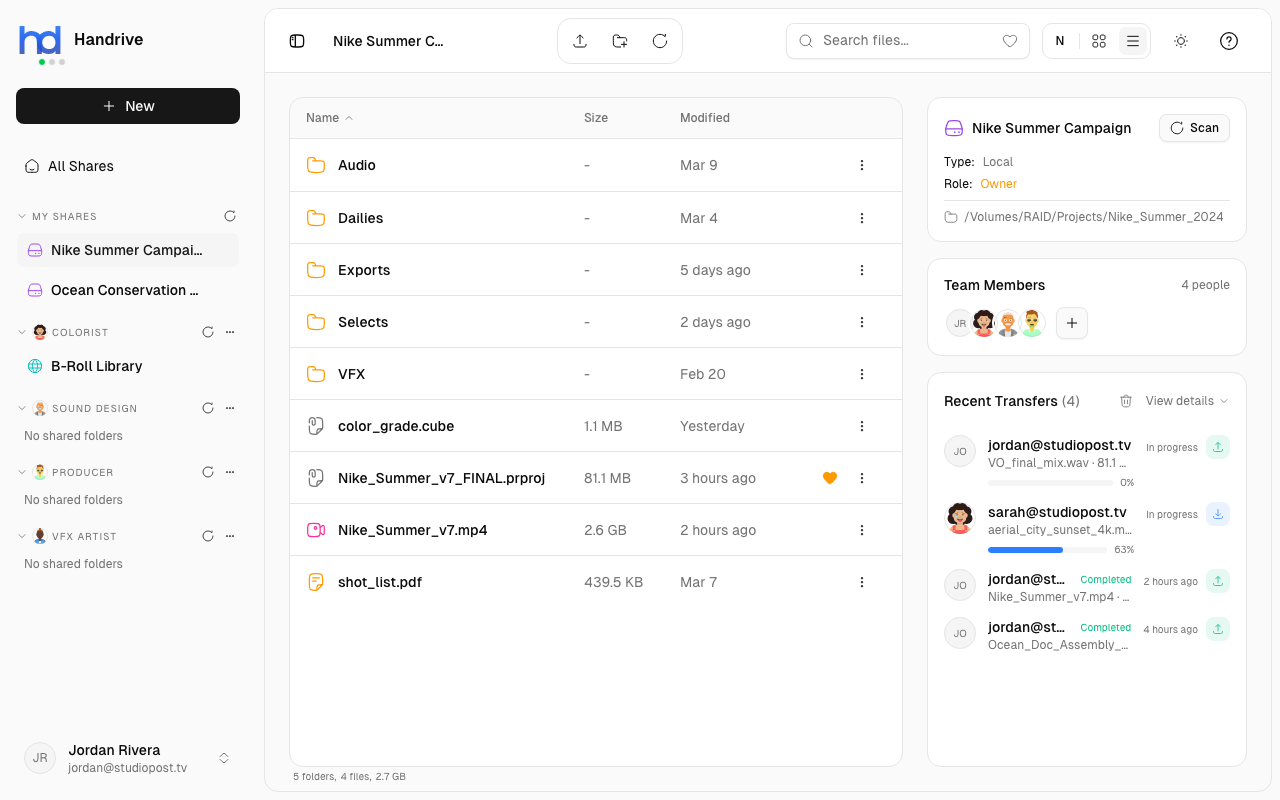
Accessing Transfer History
The transfer panel shows recent transfers:
- Open any share to see the Info Panel on the right
- Look for the Recent Transfers section
- See all recent uploads and downloads for this share
Transfer History View
Each transfer entry shows:
- Direction - Upload (↑) or Download (↓) icon
- Files - File names and count
- Status - Current state (completed, failed, in progress)
- Time - When the transfer occurred
- Size - Total data transferred
Active Transfers
Transfers in progress show:
- Progress bar - Visual indicator of completion
- Speed - Current transfer rate
- Cancel button - Stop the transfer
Transfer Details
Click a transfer to see details:
- Complete file list
- Individual file sizes
- Error messages (if failed)
- Transfer duration
- Source and destination
Clearing History
To clear completed transfers from history:
- Open transfer history
- Click Clear or Clear All
- Completed transfers are removed from the list
note
Clearing history does not delete transferred files. It only removes the transfer records.
Transfer Notifications
Handrive notifies you when:
- A transfer completes
- A transfer fails
- You receive files from someone
Finding Transferred Files
After downloading:
- Files are saved to your chosen destination
- Check your Downloads folder if you didn't specify a location
- Use search to find files in your shares